Top Picks
Start here when you want setup-specific recommendations without sorting through every spec-sheet promise yourself.
Browse Top Picks →
Research over rhetoric
We give you research-first guidance built from verified specs, support docs, and real-world setup limits — so you can avoid dead ends and choose a setup that actually fits.
Common starting points
Start with the route that matches your setup.
Not sure where to start? Browse all Top Picks or see Desk Setup Recipes.
How recommendations are earned
A dock can look perfect in a product listing and still fail once it’s plugged in. We check the limits that usually cause those failures before we recommend a route.
Checked first
Explore Cordibly
Cordibly is split into four practical entry points: buying recommendations, troubleshooting help, complete desk patterns, and plain-English connection rules.
Start here when you want setup-specific recommendations without sorting through every spec-sheet promise yourself.
Browse Top Picks →Use this when a monitor stays dark, displays mirror, a dock disconnects, charging slows down, or USB devices don’t show up.
Troubleshoot the problem →Pick a complete route — laptop, dock, monitor goal, cable path, and fallback — instead of piecing a setup together from scattered advice.
See Desk Setup Recipes →Use this when the labels are confusing: USB-C, Thunderbolt, USB4, DisplayPort Alt Mode, charging, display limits, and cable claims.
Learn the basics →Setup clarity
These guides explain the connection, display, and device behavior that most product listings leave unclear.
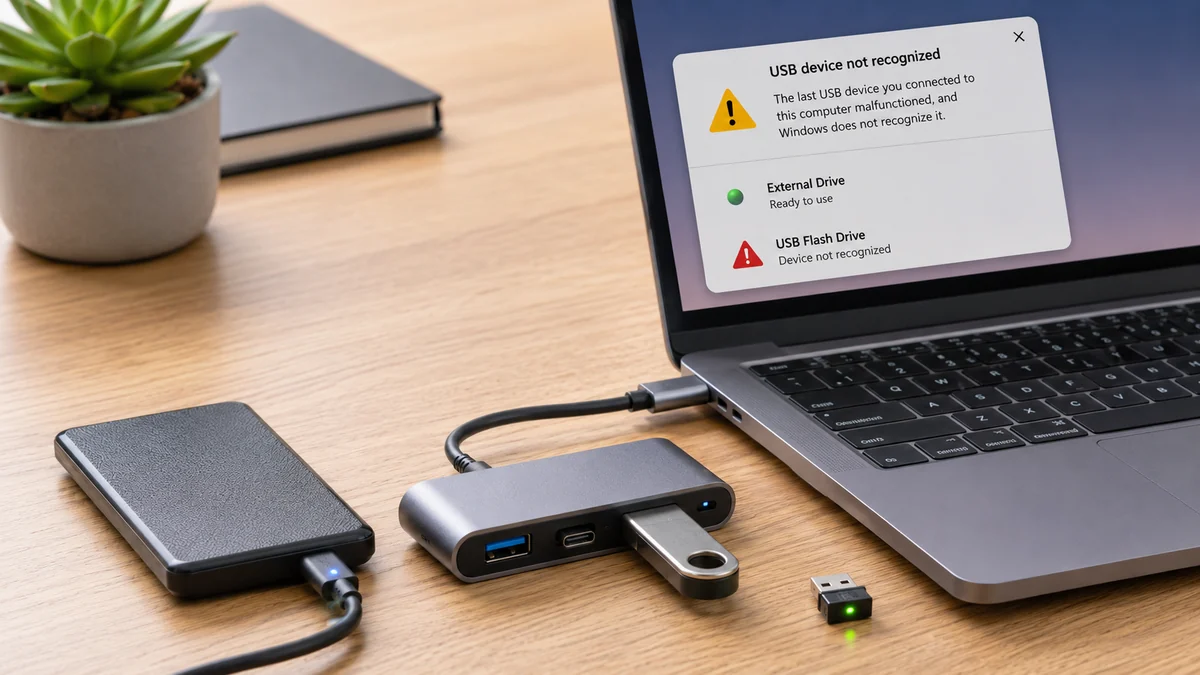
Fix My Setup
If your hub charges but your SSD, keyboard, mouse, or webcam won’t show up, it’s usually an OS permission, a weak upstream cable, a power limit, or the wrong port.
Go to the fix →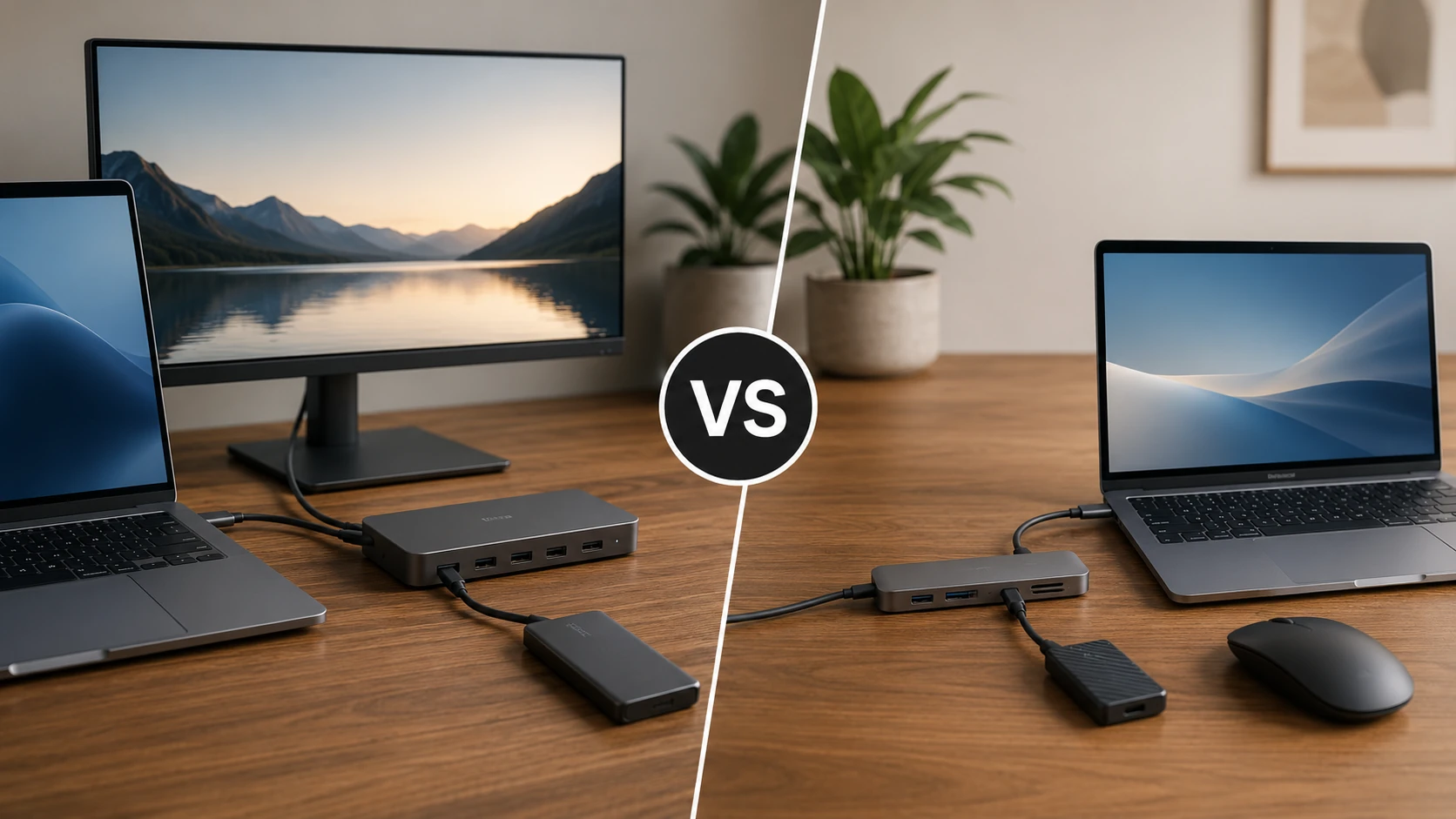
USB-C Basics
They look identical, but the capabilities aren’t. We translate the spec language into what it means for docks, displays, and buying decisions.
Learn the difference →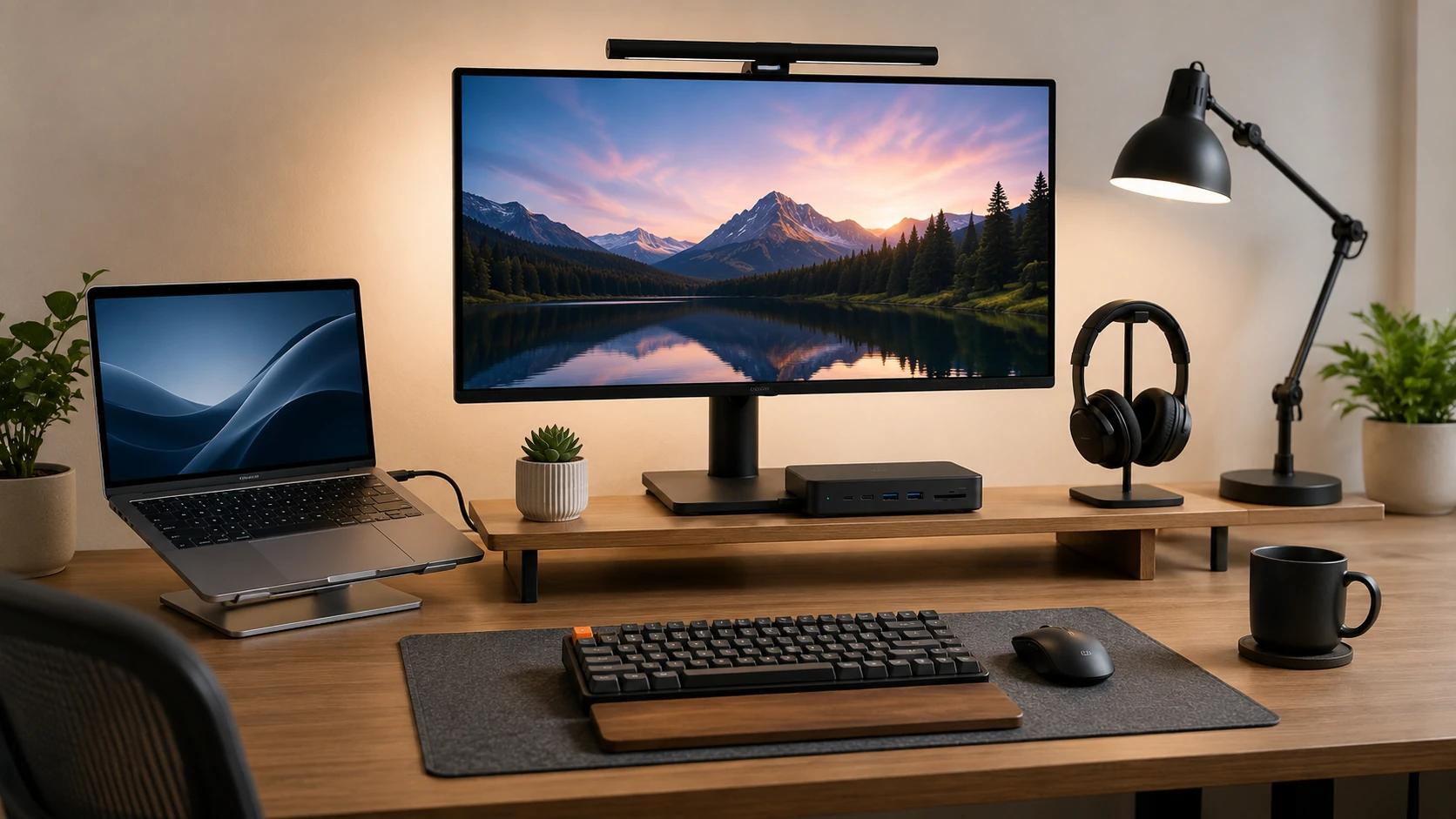
Fix My Setup
If your monitor supports 120/144Hz but your dock caps you at 60Hz, this guide shows the clean setup paths (DP, USB4/TB, HDMI limits) that actually unlock high refresh.
Fix the 60Hz cap →Ready to move forward?
Looking for the right hub or dock? Start with Top Picks. Already dealing with flicker, slow charging, missing devices, or a dead monitor? Go straight to Fix My Setup.